Limits set the budget.
Choose a daily maximum, then adjust individual weekdays to fit your routine. Give gaming or another category its own allowance within that day.
For example: a three-hour daily budget, with up to one hour for gaming.

A little more intention. Every day.
Keep the things you love about your PC. Make space for everything else. Screen Goal helps you set boundaries, focus on your goals and enjoy your downtime on your terms.
Windows Desktop Package · Windows x64 · Completely free
Windows Desktop · Personal Edition
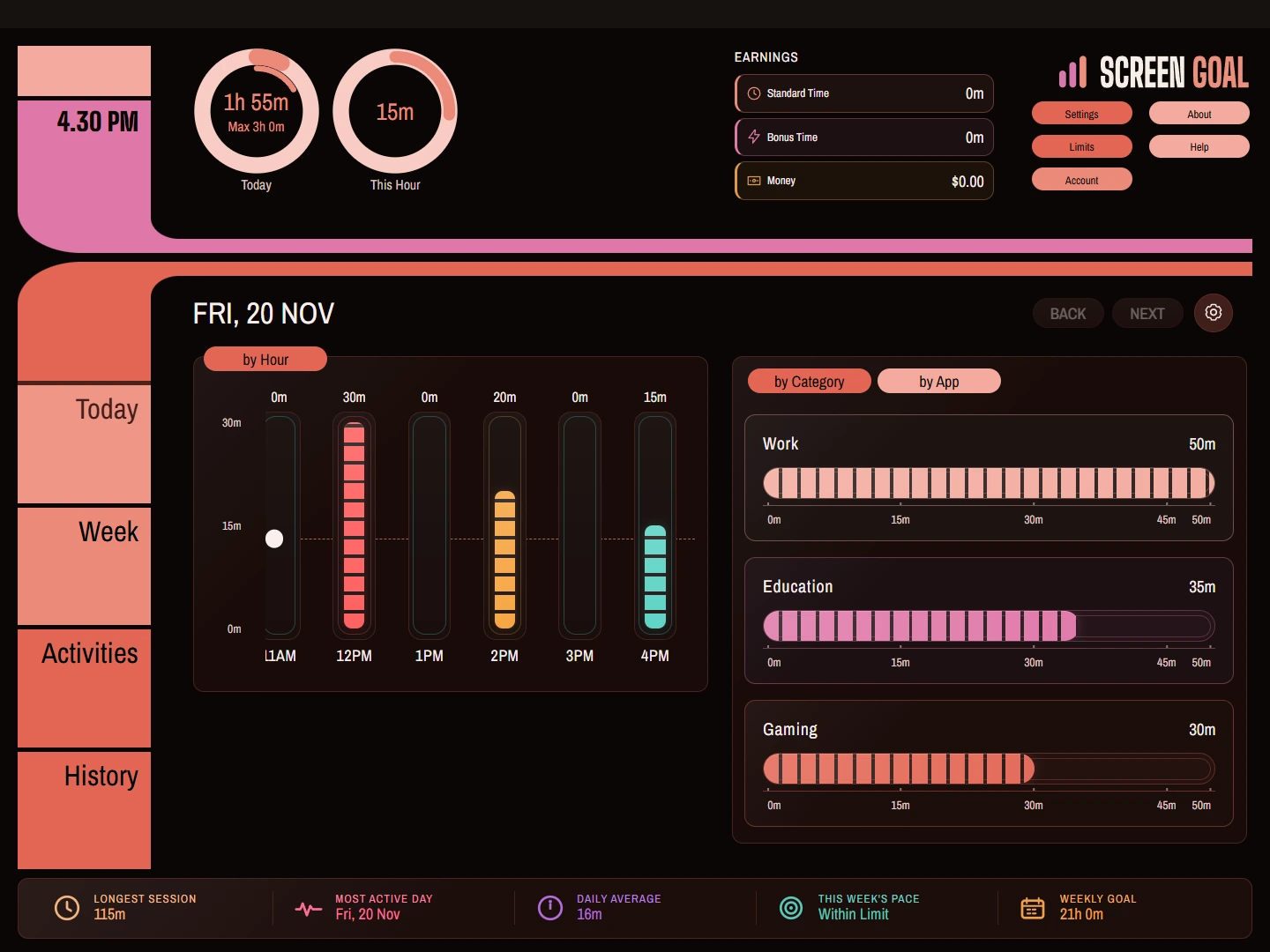
Make your intentions practical
Working, learning and getting lost in a game all use a screen. Give each its place with rules for how much, when and what.
Choose a daily maximum, then adjust individual weekdays to fit your routine. Give gaming or another category its own allowance within that day.
For example: a three-hour daily budget, with up to one hour for gaming.
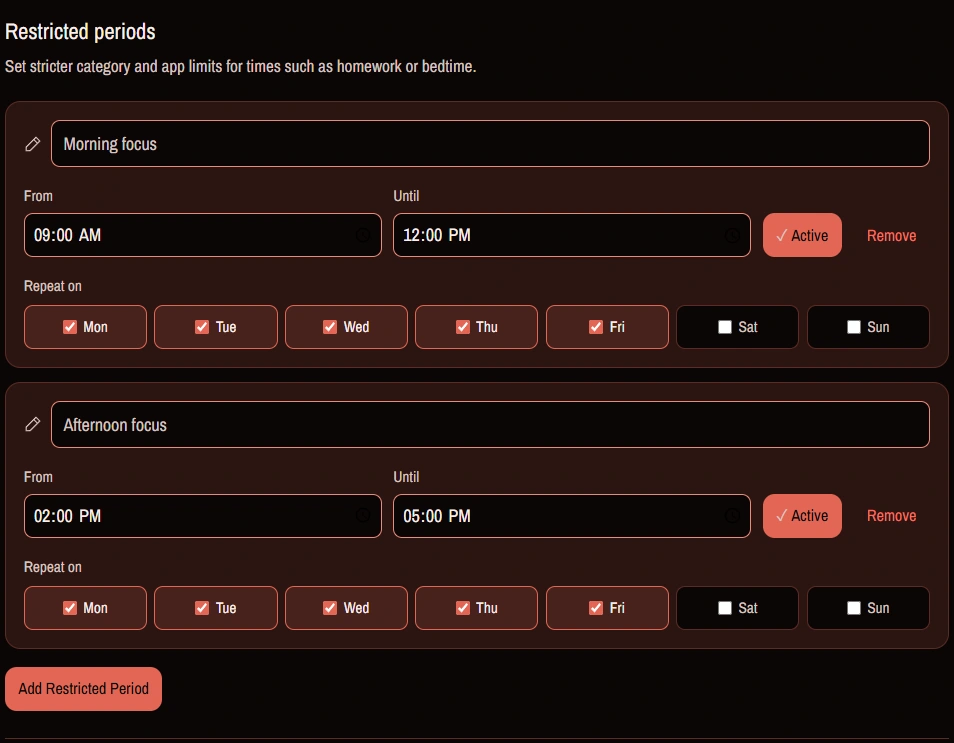
Set general use periods with start times, end times and repeating weekdays. Add restricted periods for focused work or study, with their own category and app rules.
For example: a morning focus session and another after lunch.
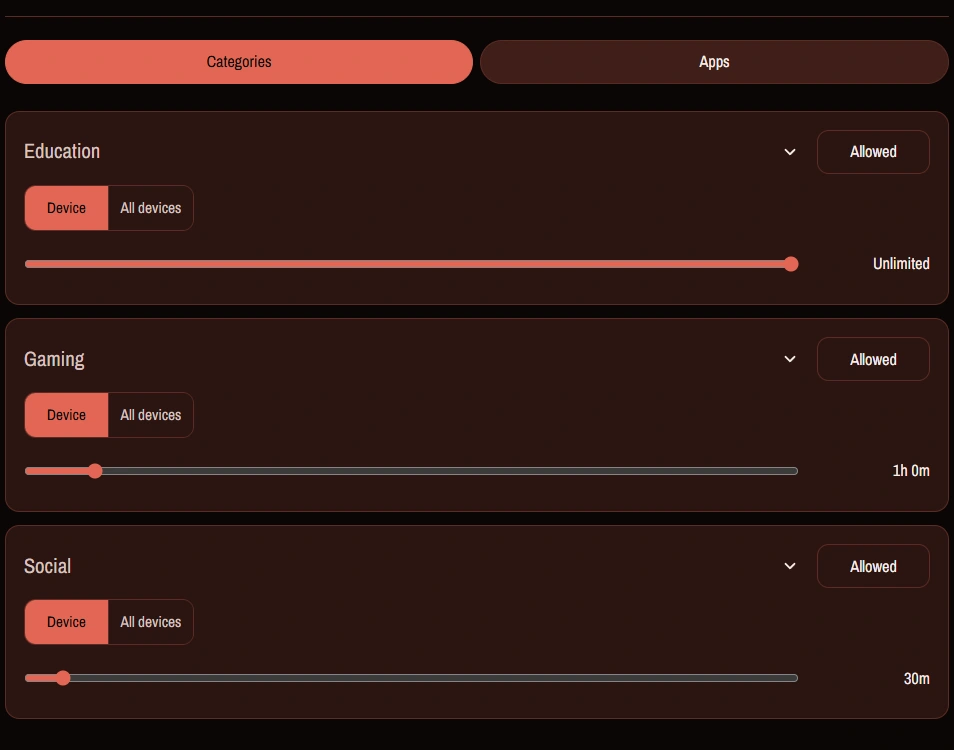
Apply rules to categories and subcategories, then fine-tune individual apps. Use category filters in your reports to explore the activity behind your totals.
For example: leave Education uncapped, limit Gaming and review the apps using that time.
These rules work together. Time left in your daily budget does not override a category limit or a restricted period. “Unlimited” means no separate quota for that app or category; other applicable rules still count.
Different moments. Different boundaries.
One rule for the whole day can be too blunt. Create multiple periods for your working hours, study sessions and evening downtime, and choose which weekdays they repeat.
General use periods define when everyday screen time is available. Restricted periods apply a narrower set of category and app rules. When they overlap, the restricted period takes priority.
Check your reports by day, hour, category or app, then adjust your plan as you learn what works for you.
 02 / Set category limits
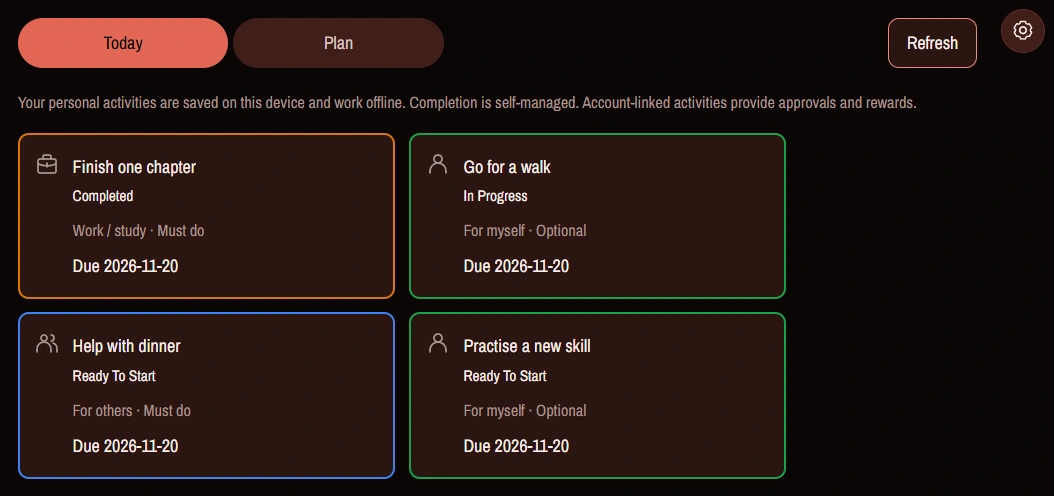
Turn “I should” into a next step
Create Activities for a work task, study goal, personal project, exercise or helping someone else. Choose Must do or Optional, add instructions and dates, and repeat routines daily or weekly.
Choose a Standard time, Bonus time or money reward. Mark an activity complete and Screen Goal automatically approves it and credits your local reward balance.
Standard time makes part of your regular allowance conditional on an activity; Bonus time earns extra. Redeem available time in 15-minute steps when you want to use it. Your app, category and schedule rules still apply.
Personal Activities and reward balances work offline without an account or another reviewer. Money rewards track what you earn and spend; Screen Goal does not transfer money. Activity history is kept for 30 days, while earned balances are retained.
Windows Desktop · Activities → Today
A nudge when you need it. A boundary when you choose it.
“Just five more minutes” is easy to say. Configurable warnings, delays and blocks help you follow through on the limits you set.
Choose advance warnings so you can see the finish coming. Use that time to save your work or find a stopping point.
“5 minutes remaining”With delays enabled, timed alerts introduce a pause before you can continue. Repeated alerts can increase the wait, giving you a moment to reconsider.
Pause. Decide what comes next.With blocking enabled, the configured warning sequence ends in a hard block. Tune your warning count and delay settings to suit your routine.
Time to switch activities.Warnings and blocking follow your settings. A warning does not extend a scheduled period or guarantee an app, upload or game session will finish before a block.
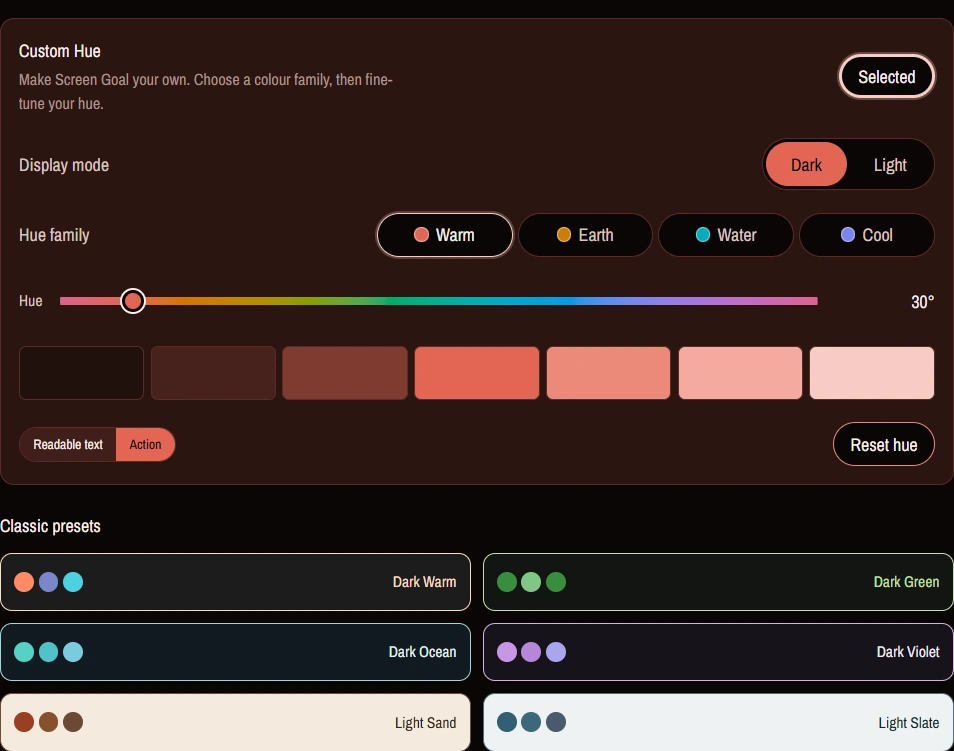
Your space, in your colours
Choose a classic theme or make your own with Custom Hue. Start with a colour you love, fine-tune it with the hue slider, then choose light or dark mode.
From Dark Ocean to Light Sand, the theme editor gives you a look that suits your desktop and your day. Find it in Settings → Appearance.
Windows Desktop · Settings → Appearance
Start with yourself. Grow when you’re ready.
Personal Edition is completely free. Start building your own routine now, and upgrade to the Family or Business version later if your needs change.
Bring screen-time management into family life, or explore an account for your organisation. Choose the next step when it makes sense for you.
Personal Edition · Completely Free
Install Screen Goal, choose Personal Use and set your first limit.
Start small. Make space for something that matters.
Windows Desktop Package · Windows x64