
START HERE
1. The apps and your family
Screen Goal brings screen-time rules, activity reports and family responsibilities together. A parent sets the rules. A linked child device records supported foreground activity and applies the rules it has received. Activities gives the child a separate place to see what needs doing and choose when to use approved rewards.
Screen Parent is the parent web experience. Sign in from a browser to manage the account, choose a child, view reports and change supported settings remotely. You can install the web app where your browser supports that option. Installing Screen Parent on a phone does not turn that phone into a monitored child device.
Screen Goal for Windows uses two applications: Desktop provides the interface, while Windows Agent handles monitoring and enforcement in the background. Screen Goal for Android includes the interface and native monitoring in one APK. On either platform, permissions, connectivity, configuration and the installed version affect the experience.
A useful first setup: one child, one device, one daily allowance and one simple activity. Check that reports and a parent rule change reach the device before adding a full weekly routine.
Keep the apps up to date, and check the setup requirements for features such as managed Android protection and push notifications. The Windows and Android sections explain where their behavior differs.
2. Platform availability
The Family Plan includes unlimited devices: $29/year for Foundation Subscribers, and $69/year from 1 January 2027.
| Experience | What it provides | What it needs |
|---|---|---|
| Parent browser / PWA | Family management, remote rules, reports, task review and reward history. | A signed-in parent account and internet access. Web app installation and push support depend on the browser. |
| Windows child device | Desktop interface, foreground activity monitoring, limits, native warnings and block screens, Activities and rewards. | Windows x64, both Desktop and Agent, and the required installation permissions. Current Windows releases are unsigned testing prereleases. |
| Android child device | Native monitoring, permissions checklist, overlays, Activities, rewards and supported browser/content metadata. | The Android APK, setup permissions and a linked device. Stronger managed protection requires a compatible managed installation. |
| macOS / iOS child monitoring | Not currently offered as a released native child-monitoring app. | Parents can use a supported browser for Screen Parent. That does not provide native monitoring of that Mac, iPhone or iPad. |
There is no current Fitbit/Garmin step reward integration, social leaderboard or AI task-photo approval. You can create a parent-reviewed activity about a walk or another offline action; Screen Goal does not independently measure whether that action happened.
See the download and release notes for installation details. A supported Android version alone does not guarantee that a particular manufacturer exposes every management, accessibility or location capability.
SCREEN PARENT → ACCOUNT
3. Accounts, children and carers
The parent account owns the family configuration. Child profiles let you keep assignments, balances, time zones and reports separate. A device is linked to the account and assigned to the appropriate child; a second device assigned to that child is part of the same child's reporting and reward context.
- Sign in through Parent Sign In and open Account.
- Create or select the child's profile and check the profile time zone. This determines daily boundaries for task rewards, allowances and bonus expiry.
- Link the child's Windows or Android device, then check the child assigned to it.
- Choose that child in the parent interface before editing their Activities or reviewing their reports.
Shared-account access allows another parent or carer to help manage the family through an invitation. Use the account-sharing controls to create and copy the invitation link. The invited person signs in with their own account and accepts access. If you can manage more than one account, check which account is selected before making changes.
A carer invitation and a device linking phrase serve different purposes. An invitation grants a person management access; a linking phrase enrolls a device. Do not give a child a carer invitation to link their phone. Review shared access when family arrangements change.
Local administrator PIN controls protect sensitive settings on a child client. An authenticated parent managing a remote child through Screen Parent uses account authorization instead. Signing in as a parent and entering a child's local PIN are different authorization paths.
4. Link a device with a temporary phrase
Use the linking flow when adding a Windows or Android device to an existing parent account. The phrase is temporary and sensitive: use it on the intended device and keep it out of screenshots, support messages and public posts.
- In the parent browser, open Account → Add device and create a temporary linking phrase.
- On the child device, open Screen Goal's Account page. On Android, complete required first-launch permissions when prompted.
- Enter the phrase in Link Device and submit it while the device is online.
- Wait for confirmation. The app needs to store its native identity successfully before it can operate as that linked device.
- Back in Screen Parent, check that the device appears, has a recognizable name and is assigned to the correct child.
If a phrase was not found or expired, generate a new phrase from the intended account and retry. Check the device's internet connection and use the latest app. A linking failure is not evidence that you need to erase the device or create another child profile.
If the app reports that it could not persist the native device identity, linking has not completed reliably. Record the exact error, update the app and contact support if it recurs. Do not assume that the device is linked merely because the phrase was accepted by the form.
Keep the original installation and its data when updating. Clearing app data, uninstalling or switching Android users can change the identity and setup state; these are not routine linking repair steps.
5. Windows setup and background monitoring
Install the matching Windows Agent and Desktop releases. The Agent records activity and enforces local policy; Desktop shows the dashboard, limits, settings, account and Activities screens. Closing the Desktop window should not be treated as stopping the Agent.
- Read the release notes and download both installers from the linked GitHub release pages.
- Install the Agent and Desktop with the required administrator permissions. Follow any protected-account selection requested by the installer.
- Open Desktop, link the device, assign the child and configure the parent's PIN.
- Use another application for a few minutes, then check that usage appears and the parent can see recent device contact.
- Test a modest rule change and confirm the device receives it before relying on unattended enforcement.
The Windows Supervisor is included with the components. It supports the managed installation and update process; it is not another app a family needs to download separately. Protection depends on the installed mode and Windows account privileges. A child with unrestricted administrator or physical access is a different security situation from a protected standard-user setup.
Current Windows distribution: Desktop 1.3.24 and Agent 1.7.23 are unsigned prereleases for manual testing. Supervisor-managed automatic updates require trusted signed releases and will not install these unsigned builds. Install the pair manually and check the release notes for later versions.
The new native push receiver has an additional Windows App Runtime prerequisite and needs configured push delivery. That is separate from ordinary monitoring, local warnings and the in-app notification inbox. See notification availability.
6. Android setup and protection modes
Android combines the interface and Agent in one app. First launch takes you through a setup checklist. Grant the permissions described by the app, return from Android Settings, and confirm that the checklist reflects the change. Permission names and screens vary by manufacturer and Android release.
- Usage Access supports app-usage observation.
- Display over other apps allows native warning and blocking overlays.
- Notifications supports the monitoring notification and local notices; Android 13 and later has a runtime permission.
- Accessibility / content access supplies supported browser and social-content metadata. It is important to the Android browser-monitoring rules.
- Location, including background access where needed, supports a parent's requested device location. Approximate location is accepted.
- Camera is requested when taking task evidence. Camera hardware is not required for basic screen-time monitoring.
Ordinary installation
A permission-based installation runs in the current Android user and uses overlays to enforce applicable rules. It does not have all of the authority of an Android owner-managed installation. Force Stop, uninstalling and revoking permissions can affect protection.
Dedicated managed installation
The Windows Android Setup wizard can review a connected device and offer an existing-user route or, on compatible devices, a dedicated managed child user. The managed route creates a separate Android user and verifies owner status. The parent's original user is retained. Supported app availability can be selected during setup, but this does not copy private app data, sign-ins, purchases or local game progress.
On Android 7 or later with the appropriate owner status, an explicit per-app Blocked rule can also suspend the package through Android. This prevents launching that app within the managed user and suppresses its notifications. It does not suspend the app in the parent's separate user. Essential apps and Always allowed exceptions remain important, and manufacturer refusals may leave overlay enforcement as the available path.
Suspension is specifically for explicit app blocks. Do not assume that every category limit, exhausted quota or content decision becomes an operating-system package suspension. Removing the rule, disabling the relevant enforcement, a parent-authorized stop or a PIN cooldown can release tracked suspensions.
Small screens and everyday recovery
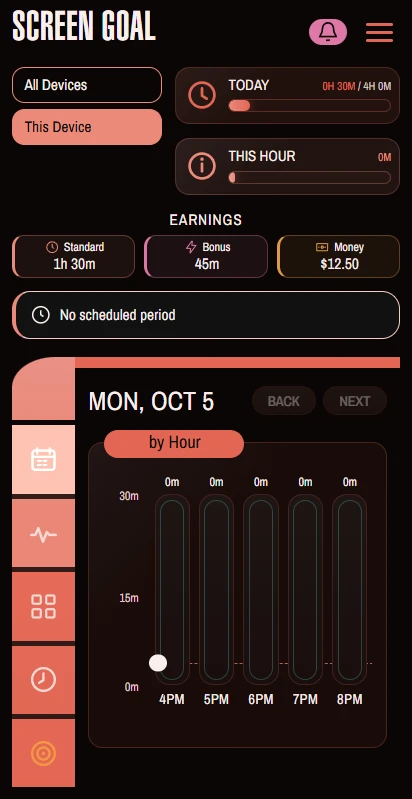
Narrow Android screens use icon-only left navigation and shorter Earnings labels: Standard, Bonus, Money. Short mobile screens also use compact navigation and Earnings. The balances retain their meaning; shortening the label does not merge the reward pools.
Monitoring can resume after an ordinary reboot or APK upgrade once the Android user is unlocked. Force Stop is different: Android suppresses the app until it is launched again. A parent-authorized stopped state stays stopped until the parent starts monitoring. Check the setup and protection status after an operating-system change.
DAY / WEEK / EARNINGS
7. Read the dashboard without mixing up the totals
The dashboard puts recorded usage, allowance information and breakdowns together. Day and Week help you review usage over time. The Earnings panel shows approved reward balances for the selected child, while Activities → Rewards explains pending amounts, redemption and history.
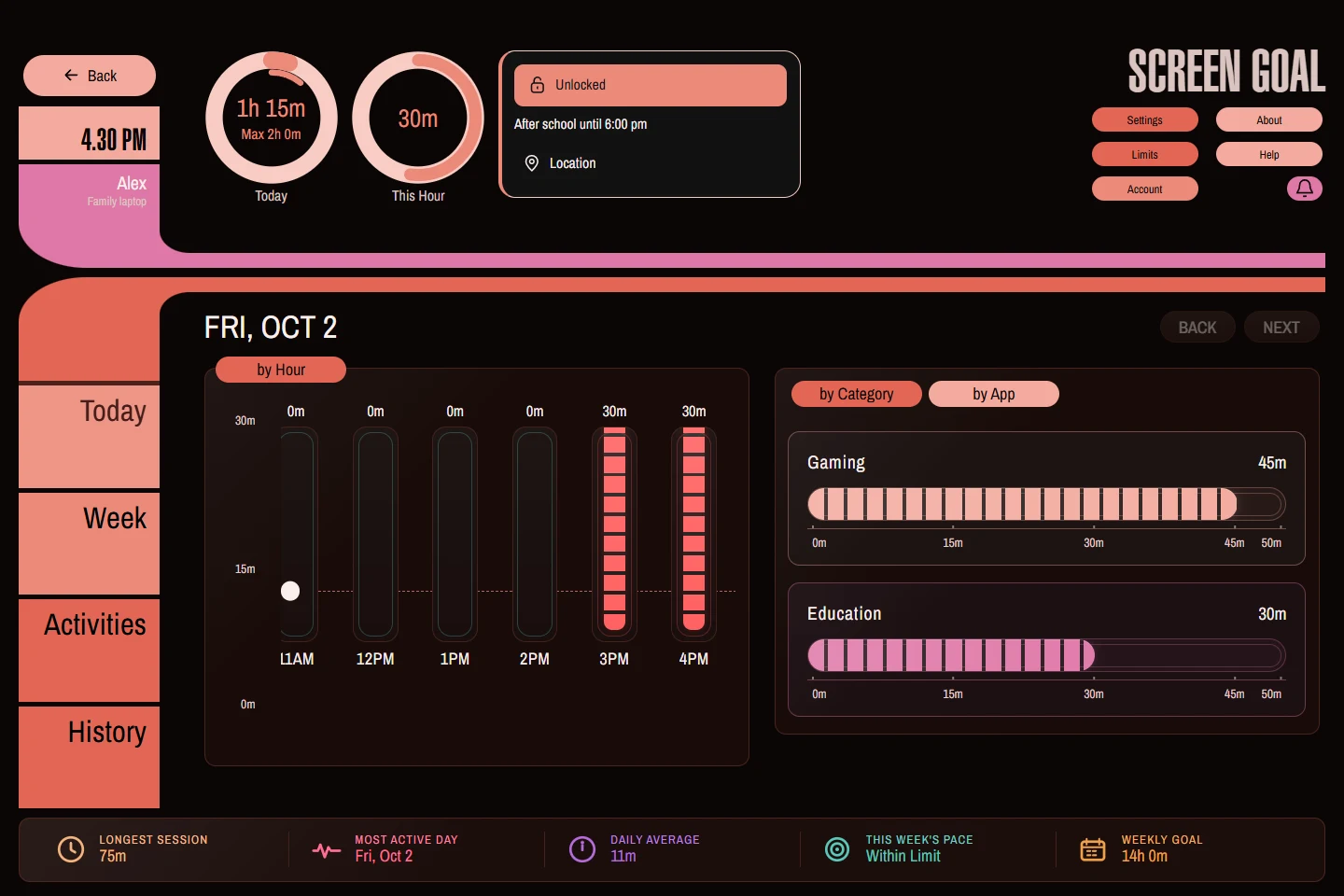
Recorded usage is time the Agent has observed. Configured allowance is the saved daily rule. Today's effective allowance is the server-confirmed daily total after standard-task withholding and redeemed task time are applied. It is not a countdown of minutes left.
An approved time balance is also not immediately usable screen time. Approval puts minutes in the bank; redemption applies them to the relevant daily total. Separate parent Bonus Time grants are another mechanism and are not included in the task-adjusted effective-allowance number.
Historical dates show historical usage. Today's effective allowance should not be read as the allowance that existed on every earlier day: historical effective allowance values are not currently supplied. If the app cannot confirm the current allowance, it should show that state rather than turn an unverified balance into a new limit.
Use the profile and device labels as context. Changing from one child to another changes the reports and reward balances being viewed. A blank or unavailable view can mean the account needs a selection, the device has not reported yet, or data could not be loaded; it does not automatically mean zero usage.
8. All Devices, individual devices and activity detail
Selecting a child in Screen Parent opens All Devices reporting by default. Use (Change) beside the report label to open the device picker, then select an individual device when you need its own activity or device controls. Return to All Devices for the child's combined view.
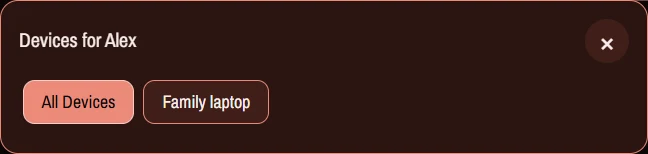
Reports can break recorded activity down by day, hour, category and app. Supported content signals can add browser titles, URLs or social captions when available. These are observations from supported software and permissions, not a recording of everything a person saw, read or heard.
Foreground activity, idle detection, screen state and platform capabilities affect what is counted. Background music is not a substitute for active foreground use. Android excludes Screen Goal and recognized infrastructure such as launchers and keyboards from its usage accounting; earlier cloud history is not automatically rewritten when an app's handling changes.
Cloud reports arrive through device synchronization. A recently completed session may still be waiting to upload. A profile-wide total and an individual device total answer different questions, particularly if two devices were used at the same time.
Report selection is not permission to change an unrelated device's rules. Before saving Limits or Settings, check the selected child, device and limit scope shown in that screen. When diagnosing a discrepancy, compare the same profile, date, time zone and device scope on both sides.
LIMITS → DAILY MAXIMUM
9. Daily limits, weekday overrides and shared time
Set the ordinary amount of screen time for a day, then add weekday overrides where the routine differs. For example, use a smaller weekday allowance and a larger weekend allowance. An override is part of the regular policy; it is different from giving extra time for today.
- Select the intended child or device in Screen Parent.
- Open Limits → Daily Maximum.
- Check whether the allowance applies to one device or the child's shared daily use.
- Adjust the default daily maximum and any day-specific values.
- Wait for saving and device synchronization, then compare the device's current rule with the parent view.
A shared child allowance is useful when a child moves between a laptop and a phone. It avoids presenting the same family agreement as an independent new allowance on every device. Individual device caps can still constrain a device where configured.
Standard-time Activities can hold part of a daily allowance until the child completes the work, receives approval and redeems the time. The saved slider does not need to move for the effective allowance to change. Read the reward calculation before treating a lower dashboard number as a sync error.
Daily totals use the child's profile time zone. Check it when linking a device or travelling. Midnight boundaries, due dates and remaining bonus are easier to understand when the account and the child profile use the intended zone.
A daily allowance is only one rule. Remaining daily minutes do not automatically override an app block, a category quota, a restricted period or a manual device lock.
10. Allowed and restricted periods
Schedules answer when an activity may happen. An allowed period can define an after-school window, while a restricted period can apply a different set of category and app rules for homework or another focused routine. Set the applicable weekdays and start/end times carefully.
A restricted period takes priority when it overlaps a general allowed period. The individual-device header shows the active period and its end time in the child's profile time zone. If configured periods make screen use unavailable, the interface can show the device as locked even though you did not manually lock it.
A practical setup
- Create the broad period in which screen use is permitted.
- Add a restricted homework period if a narrower set of activities should be available then.
- Set the restricted category and app rules separately from the ordinary rules.
- Check overlap and weekday selection using a simple test on the child device.
- Explain the displayed end time to the child so a scheduled change is predictable.
When the schedule itself is blocking access, a manual Unlock action is not a way to erase that schedule. Change the appropriate period if the family plan has changed. A task reward also leaves schedules in place.
A parent Bonus Time grant includes Respect scheduled periods, checked by default. Leave it checked to keep that grant within the configured periods. Turning it off is a deliberate exception for that parent grant, not a permanent rewrite of the schedule. It still does not clear a manual lock or every content restriction.
11. Category rules, individual apps and exceptions
Category limits let you make broad decisions about activity such as Gaming or Education. Subcategories give finer control. Discovered apps can also have their own rules, so a particular application does not have to be treated identically to everything else in its category.
| App state | Meaning |
|---|---|
| Unlimited | No separate per-app minute cap is set. Daily totals, category rules, schedules and device locks may still apply. |
| Limited | A per-app time allowance is configured. Other applicable rules can be more restrictive. |
| Blocked | An explicit app block is configured. On compatible managed Android installations, it can also trigger native package suspension. |
| Always allowed | An explicit broader exemption for that app. Treat it differently from Unlimited and use it deliberately. |
| Protected essential | An essential app protected by the platform policy; it is not an ordinary editable game or entertainment exception. |
Ordinary and restricted-period app rules are separate. If an app seems to change behavior at homework time, inspect the active period and the matching rule set. Also check whether the app has an Always allowed exception.
App discovery and classification need observations from the device and, where applicable, cloud classification. A newly installed app may not immediately have the final category shown everywhere. Classification can be incomplete or wrong; review the actual app and context rather than assuming its label proves the nature of every activity inside it.
After changing a rule remotely, allow synchronization and reopen Limits on the child device. If it still shows Unlimited after you selected Blocked, compare the exact app, normal/restricted context and selected device, then check connectivity and app versions. Do not repeatedly toggle unrelated rules to try to force an update.
LIMITS → BROWSER MONITORING ON ANDROID
12. Browser monitoring and readable content
Android can apply a policy when a browser cannot be monitored. The available responses are block, warn or off; blocking is the default. This addresses a different question from how many minutes the browser is allowed.
A recognized browser still needs the content-access permission and readable, current metadata. The app allows a brief entry grace period. When an address or search field has focus, navigation can be permitted without collecting the draft being typed. Unsupported browsers and browser versions with unreadable accessibility layouts may not provide usable content.
Parent-managed, exact-app exceptions can permit unmonitored browsing. Such an exception keeps ordinary schedules and quotas in effect. Always allowed is a broader exemption and should not be used as a synonym for a browser-monitoring exception.
Adapters cover supported variants of common browsers, including Chrome/Chromium, Edge, Brave, Vivaldi, Firefox, Samsung Internet and Opera. An adapter name is not a guarantee for every release, private-browsing mode, embedded browser or manufacturer variation. Test the particular browser your child uses.
Supported Android social-content adapters may record a visible, readable post or video caption. Private-message and composition screens, password fields, ambiguous feeds and unavailable content do not become a complete transcript. Metadata can expire when it is no longer observed, leaving app-level usage instead. A caption is not proof of video playback or attention.
SETTINGS → BLOCKING
13. Advance warnings, timed alerts and blocking
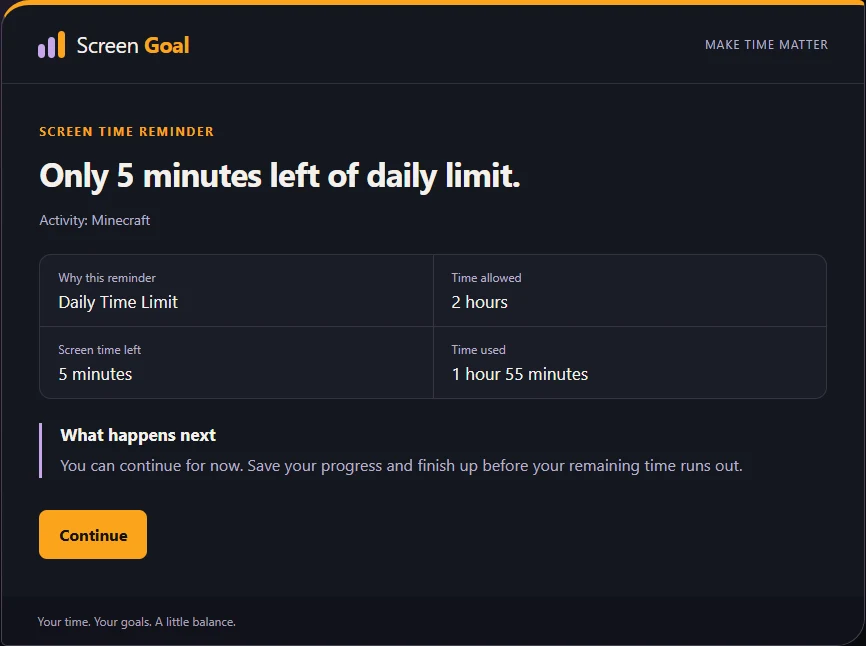
Warnings help make the boundary visible before it arrives. Configure how far ahead of a limit the child should be warned. A five-minute warning means the family can plan a stopping point; it does not guarantee that a game round, upload or unsaved document will finish in time.
With delays enabled, reaching the limit can begin a finite sequence of post-limit alerts. Continuing requires the displayed wait to finish. The configured number of completed warnings determines when the hard block takes over; the delay settings affect the countdown. Turning off delays or changing the warning count changes the experience.
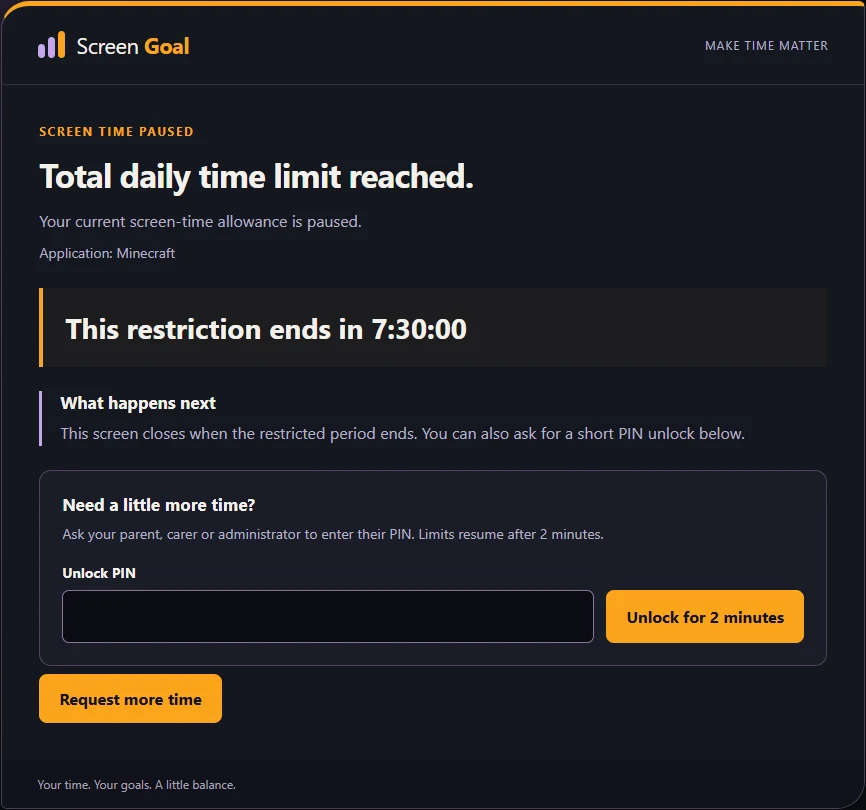
A valid parent PIN can provide the supported short, two-minute enforcement cooldown. Rules resume afterward. Clearing a saved manual lock through a parent PIN is a separate device-control action; do not confuse a temporary cooldown with changing the daily maximum.
The child can request more time from a supported native block screen. The request goes to the parent inbox, and the parent decides whether to grant time. Submitting a request does not itself extend the allowance or unlock the device. Duplicate requests may be grouped during the request cooldown.
Windows uses its native dialog renderers; Android uses native overlays and may additionally suspend explicitly blocked apps in managed mode. Test the particular game or full-screen application. Screen Goal does not promise compatibility with every game, anti-cheat system or display mode.
14. Device lock, battery and location
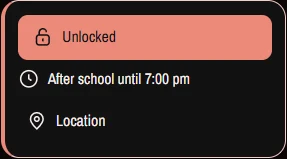
Select an individual device to see its device-control widget. The All Devices view intentionally does not pretend there is a single battery level, location or device lock for the combined report.
Manual locking
A parent can request a manual lock or unlock. The saved lock survives ordinary agent restarts and offline periods. Bonus time does not remove it. The interface distinguishes a requested change from one the device has acknowledged, so look for pending or offline status before concluding that enforcement has changed.
When a parent clears the manual lock locally with the verified PIN, the device records the change and acknowledges it to the server when possible. A later parent lock is a new instruction. Always-available apps remain exceptions to ordinary locking.
Battery and location
Battery information appears where the device supplies it. A desktop computer without battery telemetry cannot provide a meaningful phone-style percentage.
Opening Location requests one position. Refresh requests another. The map shows the captured time and reported accuracy; it is not a continuous live tracking trail. A request can time out if the device is offline, permission is missing or location services cannot supply a fix. The server keeps the latest successful location rather than building a route history.
Approximate location can be valid but less precise. Compare the accuracy radius and timestamp before assuming a marker describes the device's exact current position. Android may need background location access to answer while its interface is closed.
LIMITS → BONUS TIME
15. Parent-granted bonus time
Use this for a parent's one-off decision to add time today. It is useful for changed plans or an approved extra-time request. It does not change the recurring daily maximum, and it is separate from the child's earned reward bank in Activities.
- Select the child and check whether the grant is for All Devices or a specific device.
- Open Limits → Bonus Time and choose the hours and minutes.
- Choose Any activity, a category or a particular app where offered.
- Review Respect scheduled periods, checked by default.
- Grant the time and check the confirmed grant and remaining amount in Today's bonus.
Normal time is used first. Applicable bonus becomes usable when the ordinary limit would otherwise require it. Repeated parent grants can accumulate, but each has its own scope and target. Time restricted to one app does not become a free allowance for every other app.
Parent grants expire at midnight in the child's profile time zone. A shared grant is one pool across the child's devices; it is not a fresh copy on each device. Devices coordinate use with the server, so changes and bonus availability depend on synchronization.
Deleting a grant removes its remaining eligibility. It does not rewrite the record of time already used. A previously issued short reservation can affect exactly when a device exhausts its usable amount. Check the child device when a grant needs to be withdrawn urgently.
Two different uses of “bonus”. A parent grant is usable extra time for today and expires that night. Earned bonus in Activities is a bank balance that carries forward until the child redeems it. Redeeming that bank changes the daily total; it is not a category-targeted parent grant.
ACTIVITIES → PLAN
16. Create a plan of Activities
Activities organizes responsibilities and optional opportunities into Work, Self and Others. Work might include schoolwork or household jobs; Self can include reading, creativity or time outside; Others can include helping a sibling. These categories organize the plan. They do not change how a reward is calculated.
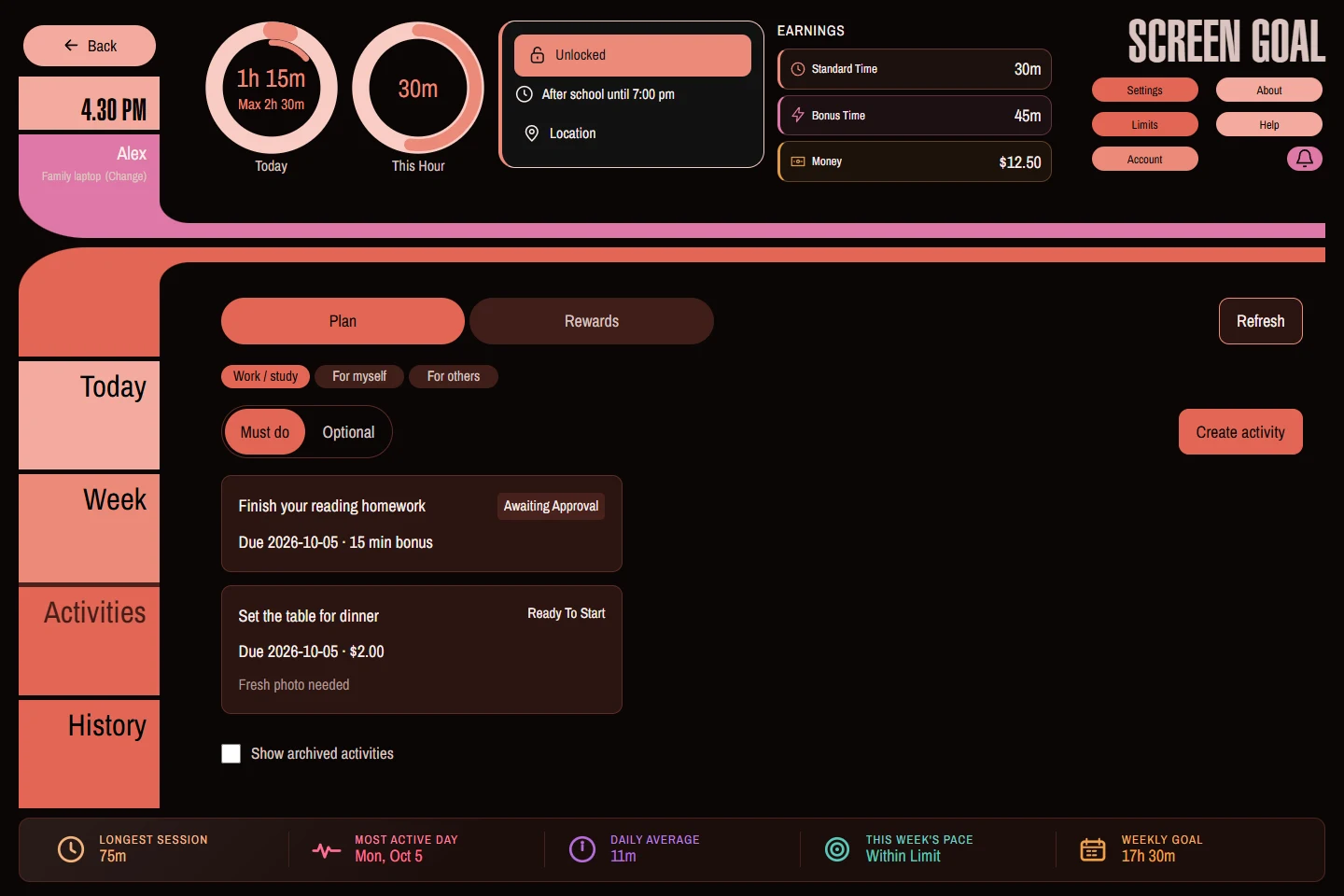
- Select the child, open Activities → Plan and choose a category.
- Choose Must do or Optional, then Create activity.
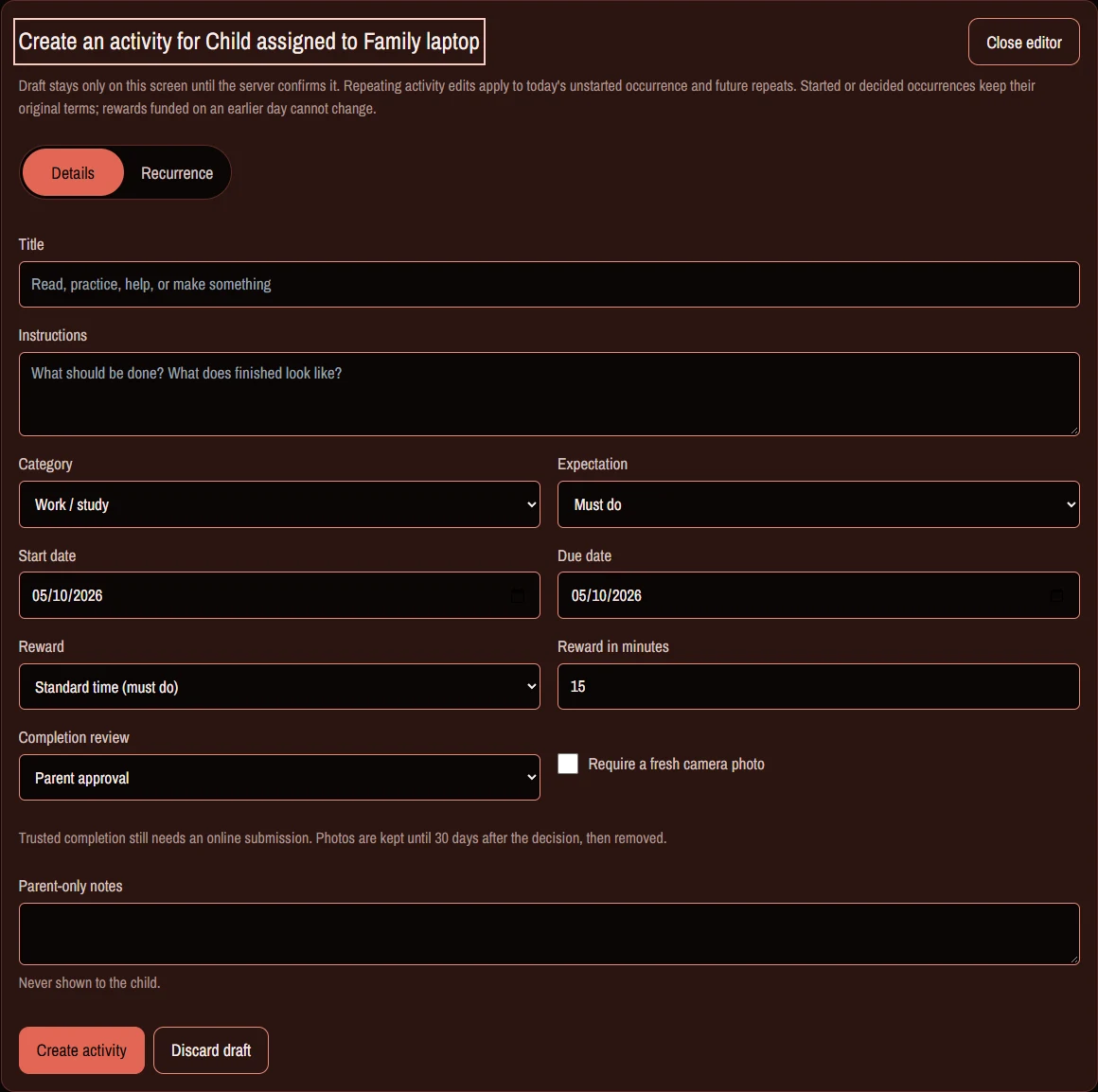
- Write a clear title and completion instructions. Describe something the child can recognize as finished.
- Set the start date and due date. A required or repeating activity needs a due date; a one-off optional activity can have no deadline.
- Choose Standard time, Bonus time or Money and enter the amount. Standard time is for must-do activities; an optional time reward uses the bonus pool.
- Choose Parent approval or Trusted completion, and decide whether a fresh camera photo is required.
- Add parent-only notes if helpful, configure repeats if needed, and create the activity.
The draft remains on the current screen until creation is confirmed. Parent-only notes are separate from the instructions and review feedback shown to the child. Do not put instructions the child needs to follow only in the parent-only field.
Choose modest, clear rewards and an achievable deadline. A required standard-time activity can reduce today's effective allowance before it is completed; understand that consequence before assigning many tasks at once. Optional activities give a choice without being treated as another required deduction.
The child uses a linked Windows or Android Screen Goal client. An unlinked browser cannot submit work as a child merely by opening the website. A parent browser manages assignments and decisions under the selected child profile.
17. Completion, fresh photos and parent review
The child selects an activity, reads the instructions and starts it when available. After completing it, they can add a completion note and submit. A parent-reviewed submission becomes Awaiting parent approval; its reward is pending and cannot yet be spent.
Taking a photo
Where a fresh photo is required, use Open camera, grant camera permission, frame the result and choose Take photo now. Review the preview, retake it if needed, then submit. Closing the camera and discarding the photo does not submit the activity. Optional photos use the same live-capture flow.
The app does not offer a gallery upload as a substitute for a required fresh capture. If the camera is denied, unavailable or unsupported, the child needs help with permission or the activity's requirements. A failed upload or expired capture session is not a successful completion. Follow the error and capture a new image where requested.
Reviewing the result
- The parent selects the child and opens the submitted activity in Plan, or follows its notification.
- Read the completion note and view any submitted photo.
- Add feedback the child should see.
- Choose Accept completion, or Not accepted and decide whether another attempt is allowed.
- Check the confirmed status and reward balance. Approval does not automatically redeem time.
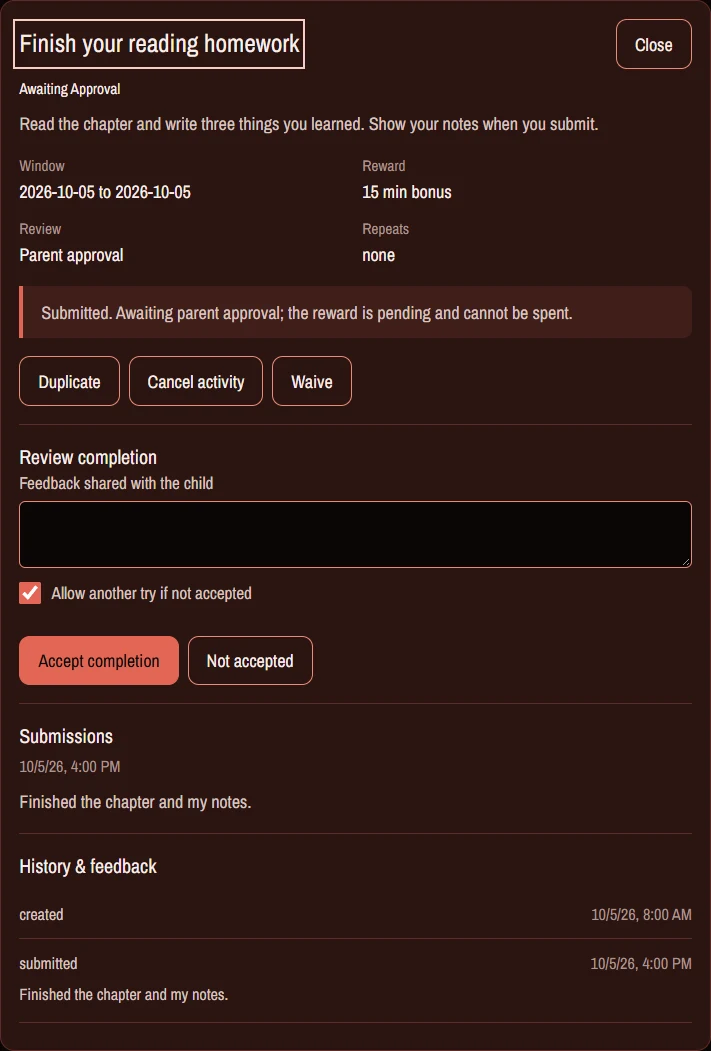
Trusted completion skips the separate parent approval step after a valid online submission. It does not independently verify the activity or analyze a photo with AI. A required photo still needs to be captured if the task requires one.
Photos are private evidence associated with the task. The latest submitted image is retained for 30 days after its decision, while pending/unsubmitted evidence has an expiry as well. Image cleanup does not erase the task's decision and transaction history. A photo supports a conversation; it is not guaranteed proof that all instructions were followed.
ACTIVITIES → REWARDS
18. Standard time, earned bonus and redemption
There are three distinct reward pools. Standard time and Bonus time are measured in minutes. Money is a separate virtual balance. The Earnings panel gives a quick view of approved balances; Rewards includes pending amounts, redemption controls and the history for each pool.
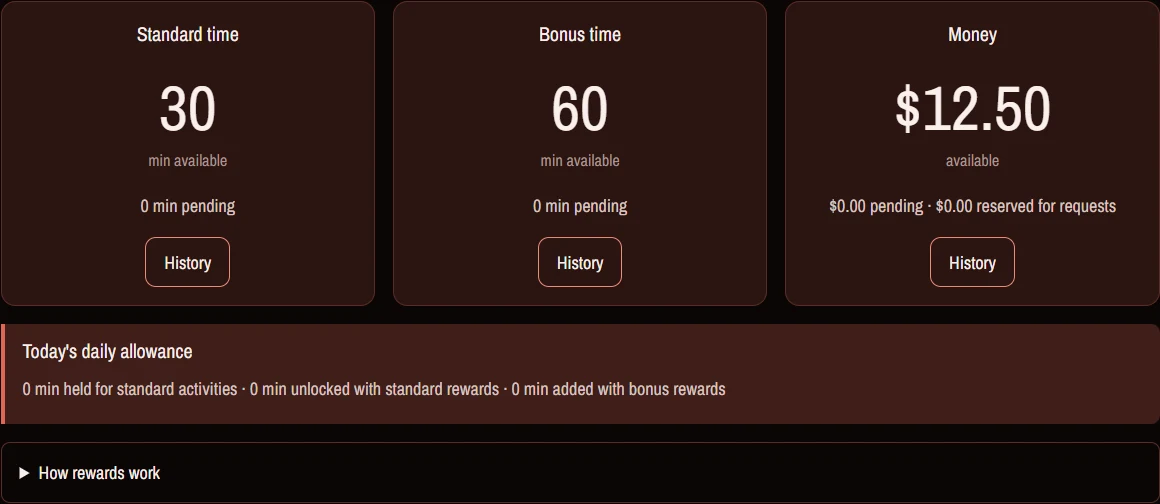
Standard time releases part of an allowance
A must-do activity with a standard-time reward holds that amount from the child's daily allowance on its funding day, normally its due date. Finishing and receiving approval credits the bank. The child then chooses how much approved time to redeem in 15-minute steps.
A 4-hour day with 1 hour to earn
Configured daily allowance: 240 minutes. Standard task holds: 60 minutes.
240 − 60 = 180 minutes initially
Parent approval makes 60 minutes available in the standard bank. The effective allowance remains 180 until redemption.
180 + 60 redeemed = 240 minutes
This is a daily total, not remaining time. Already recorded usage still counts.
Earned bonus adds to the day you choose
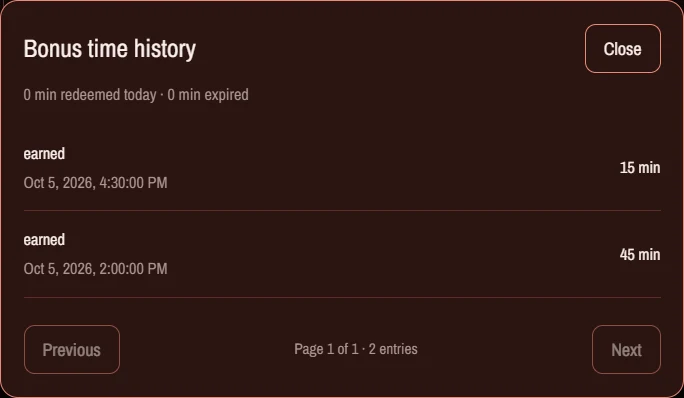
Bonus rewards do not take time out of the regular allowance before the task. Accepted bonus goes to the bonus bank. That unredeemed balance carries forward, and the child chooses a day and a 15-minute increment to use. An approved balance below 15 minutes remains in the bank until enough is available for a redemption step.
Redeemed task time affects the child's daily total. It does not increase a separate category or app quota, remove an explicit content/app block, extend a scheduled period or clear a manual lock. Redeeming 15 minutes therefore does not guarantee that an otherwise blocked game becomes available.
Expiry, carry-over and timing
Standard rewards normally expire at the funding day's midnight unless the parent enables Carry unused standard time to later days. An approval after the original funding date can be recorded as expired when carry-over is off. An approved future-due standard reward can be scheduled rather than available immediately.
Earned bonus carries forward while it remains unredeemed. Once time is redeemed, it applies to the relevant day; do not treat the applied daily allowance as a permanently growing bank. Money has its own rules below.
A confirmed redemption matters more than a button tap. Wait for the server response. If the app offers Retry the same request, use that control so an uncertain response does not become another request to spend the same reward.
19. Pocket money, spend requests and cash out
A Money reward credits a virtual family balance after acceptance. It is separate from screen time and does not expire merely because a day ends. It is not a payment account, stored-value wallet or automatic transfer to a bank.
- The parent creates an activity with a Money reward. The activity editor accepts cents: 100 means $1.00.
- The child completes the activity and it is accepted according to the review mode.
- The child opens Activities → Rewards, checks the Money balance and chooses a spend or cash-out request.
- The child enters the amount and a note explaining the request.
- The parent reviews the pending money request and approves or declines it.
- The family handles the actual purchase or cash payment outside Screen Goal.
A pending payout request reserves its amount so it cannot be requested again as if it were still freely available. The balance distinguishes available, pending rewards and money reserved for requests. A declined request releases the reservation; approval records the payout decision in the ledger.
Use the Money History button to review transactions. The history view is separate from the standard and bonus histories and provides pages when there are many entries. A task being archived should not be read as deleting the financial record of an accepted reward.
Agree the meaning of approval. Tell the child whether you approve a request when you hand over the money or when you agree to make the purchase. Screen Goal records the family's decision; it cannot prove that an external payment took place.
20. Repeats, changes, overdue work and history
The activity editor supports one-off, daily and weekly schedules. For a weekly repeat, choose the weekdays and an end date. Each occurrence has its own completion state and reward. Completing Monday's occurrence is not completion of the entire repeating series.
Editing a repeating activity applies to eligible unstarted work and future occurrences. Started or already decided occurrences preserve their original terms. When a reward has already been funded on an earlier day, its funding cannot be silently moved by changing the amount.
Choose the right management action
- Edit updates the fields currently eligible for change.
- Duplicate provides a starting point for a new activity. Review the new dates, assignee context and reward.
- Reschedule dates moves an occurrence's completion window without moving an already funded standard-time deduction to another day. It does not silently change the repeating schedule.
- Cancel activity closes the expectation without granting a new reward.
- Waive removes the expectation without treating it as an accepted, reward-earning completion.
- Stop repeating activity can close unfinished occurrences and stop future repeats. Already accepted rewards are kept.
- Archive moves eligible finished work out of the active list while retaining history. Use Show archived activities to find it again.
The confirmation explains whether an action affects one occurrence or the whole series. Read that choice before confirming. Cancelling an activity should not be used as a way to silently claw back an already credited reward.
Under Activity defaults, a parent can choose follow-up, carry-forward, waive or cancel handling for overdue work. Review defaults apply to new activities. Reminders and standard-time carry-over are separate settings.
An overdue activity may need parent follow-up before the child can complete it. A rejected submission may allow another attempt, depending on the parent's review decision and the active completion window. Use the task's History & feedback to understand what changed and what to do next.
21. Inbox, extra-time requests, reminders and push
The bell shows unread notifications. Open Notifications to read the inbox; expanding an item marks that recipient's copy read. A parent and a child can have different copies of the same event, so reading it for one person does not imply everyone has read it.
Activity submissions can notify the parent that review is needed. Decisions and outcomes can notify the child. A parent follows a notification into the appropriate child and activity context. If the activity is no longer available to the selected account, use the account selector and refresh rather than assuming access to another profile.
Extra-time requests arrive for parent review. The supported parent action opens Bonus Time for the relevant child/device; it is still the parent's grant decision. Repeated requests in the request cooldown may return the existing request, so repeatedly pressing the button does not create more allowance.
Activity reminders
Parents can enable activity notifications and set a reminder interval in Activity defaults. Zero means reminders are off. Reminders follow the child's time zone and depend on client/server synchronization. They are not guaranteed alarms at an exact clock time when all clients are offline.
Optional system push
Screen Parent has an optional install/notification prompt and Account → Push notifications. Android also offers a notification choice during setup and later settings. Browser/OS permission, the app build and a configured server/provider all affect whether push is available. A permission prompt alone does not establish that delivery is configured.
Windows native push additionally needs the Windows App Runtime and the receiving Agent in the interactive user's unelevated session. It does not wake a completely stopped Agent. Android native push needs its configured provider and the relevant system services. Current release notes identify setup dependencies.
Use the inbox as the place to check decisions even if a push is late or absent. Push availability is separate from local time-limit warnings and from the persistent Android monitoring notification. Reading a system notification preview is not necessarily the same as marking the inbox item read.
22. Synchronization, offline use and updates
A successful parent save and a child device applying the change are two different events. A device must be running, authorized and able to reach the service. Parent reports, policy checks, device controls and activity uploads do not all use the same interval.
Android checks device controls separately from activity uploads, and refreshes native policy shown in the UI on resume, while open and when Limits is opened. Windows has its own Agent heartbeat. Allow the relevant synchronization to complete and check acknowledgement or last-contact indicators instead of assuming every change is instantaneous.
What happens offline?
- The device can continue using its saved policy and persisted manual lock while the Agent and required permissions remain active.
- Activity can wait locally for a later upload, so the parent's report can lag behind the device.
- New task submissions, approvals and redemptions need a server-confirmed response. An offline tap is not an approved or redeemed reward.
- A same-day confirmed task-time snapshot can survive a local restart, but it does not remain valid as today's accounting after the child's midnight.
- Parent-granted bonus uses short server-coordinated reservations. An already usable reservation may continue until exhausted or expired; obtaining more needs connectivity.
- Location requests and remote control acknowledgement may remain pending or time out.
Updating the apps
Keep the parent interface, server and child clients on compatible versions when adopting new controls. Older agents may not understand task withholding or newer browser policies. For Windows, update Desktop and Agent together when the release calls for a pair. For Android, use the official signed release and the supported in-app update flow when offered.
Android updates require the same package/signing identity and a newer version. Keep the existing app data rather than uninstalling to force an update. After an update, verify linking, permissions, monitoring and one simple parent-to-device rule change.
23. What information is recorded and shared
A linked family setup uses both local device storage and cloud services. It is not a local-only product. Activity synchronization makes parent reporting possible; the account service coordinates linked devices, settings, tasks, reward balances and notifications.
- Usage: supported app identity, foreground duration, timing and classification. Browser titles, URLs or supported visible captions may be available depending on the platform, permission and app.
- Account and device context: family profiles, device names, assignments, configured rules, contact/synchronization status and supported diagnostics.
- Activities: instructions, completion notes, decisions, reward and payout records, and submitted camera evidence where used.
- Requested location: the latest successful fix, with accuracy and capture time; not a continuous route history.
- Notifications: inbox events and optional push registration needed to deliver configured notifications.
Parents should explain the monitoring and photo requirements to the child and use their own account and PIN carefully. A linked child device is not a general-purpose way to browse another child's private task data. Parent-only notes are kept separate from feedback intended for the child.
Task evidence is retrieved through authenticated access rather than a public photo URL. The app can create a temporary blob: URL to display an authorized image in the current session. That address is not a shareable permanent image link; another browser cannot use it as a public photo download.
Uninstalling an app or clearing local storage is not deletion of the server-side family account and its history. Review the privacy information and contact support for account-data questions. This guide does not promise an unimplemented export tool, universal retention period or automatic deletion of cloud records.
24. Three worked family examples
Homework unlocks part of the usual day
You set a four-hour child allowance and assign a must-do Work activity worth 60 minutes of Standard time, due today. Today's effective allowance starts at three hours. The child submits the homework; you accept it. The approved 60 minutes appears in the bank. When the child redeems all 60, the day's total returns to four hours. The child still has to respect the homework period, game category limit and any manual lock.
An optional activity builds a bonus bank
You create an optional Self activity worth 15 minutes of Bonus time. It does not reduce the regular allowance first. After acceptance, the 15 minutes can stay in the bonus bank for another day. When the child redeems it, that day's daily total increases by 15 minutes. A separate 30-minute limit on a particular app still matters; the reward is not an app-specific override.
A helpful job earns pocket money
You assign an Others activity worth $2.00. After acceptance, it joins the child's Money balance. The child requests $1.50 to spend, which is reserved while waiting for your decision. You approve and arrange the purchase outside the app. The ledger records the approval; Screen Goal does not transfer money to a shop or bank.
For a different situation—a parent simply allowing 15 extra minutes of gaming today—use Limits → Bonus Time instead of manufacturing a task. That grant can target Gaming, has its own schedule choice and expires at the child's midnight.
These are worked examples, not prescribed parenting rules or customer outcome claims. Choose responsibilities and expectations that make sense for the child's circumstances and explain them before relying on enforcement.
25. Troubleshooting by symptom
I approved an activity, but screen time did not increase.
Approval credits the appropriate reward bank. The child must redeem approved time in 15-minute steps. Then check the effective daily allowance, device synchronization and any separate app/category limit, period or manual lock. Money rewards do not change screen time.
The daily maximum is higher than the effective allowance.
Look for standard-time tasks funded today. Their withheld minutes reduce the effective allowance until redeemed. The saved daily rule remains intact. Check the current child's Rewards and task history before changing the slider to compensate.
Bonus says available, but the game remains blocked.
First identify which bonus you mean. Earned Activities bonus needs redemption and changes the daily total only. A parent Bonus Time grant has a target and schedule choice. Neither should be assumed to erase a manual lock or every explicit app/content block. Check the active rule and the device's acknowledgement.
Android still shows Unlimited after I selected Blocked.
Check the exact selected child/device and app, and whether you changed the normal or restricted-period rule. Reopen Limits on the updated Android app, confirm connectivity and wait for policy refresh. If the mismatch remains, record the app version, active period and last device contact for support.
A blocked Android app can still start.
Ordinary installs enforce through overlays. Native package suspension requires a supported managed owner installation and an explicit per-app block; it is not the result of every exhausted quota. Check the protection status, permission state, Always allowed exceptions and parent PIN cooldown. Manufacturer restrictions can also prevent suspension.
My child cannot submit an activity in a browser.
Child submissions need the authenticated transport of a linked Screen Goal Windows or Android client. A parent can use Screen Parent to manage Activities, but an unlinked web page does not become the child device. Open the linked app and confirm the assigned profile.
The camera or completed-task photo is unavailable.
Check camera permission and hardware, then use a fresh in-app capture. For an existing submission, reopen it while signed in to an account with access. A temporary blob URL is not a permanent link. Evidence can expire after its retention period; an image no longer being available does not erase the decision history.
A submission or redemption is waiting for confirmation.
Keep the context selected and use Retry the same request if offered. A lost network response can occur after the server accepted the action. Do not create a new activity, account or payout to compensate before checking the confirmed state.
Location or a remote unlock stays pending.
Check that the selected device is online, the Agent is running and the necessary permissions are granted. A location request can expire, and a scheduled restriction is not removed by a manual unlock. Compare the last-contact and applied-change indicators.
I did not receive a push notification.
Check the in-app inbox first. Push needs platform permission and configured delivery; Windows also needs its runtime and running receiver, while Android needs its configured provider services. A missing push does not mean the task approval failed. Activity reminders are also dependent on synchronization.
The Windows update did not install automatically.
The current Windows testing releases are unsigned. The Supervisor requires trusted signed updates and will not install those prereleases automatically. Read the release notes and manually install the matching Desktop and Agent pair.
What should I send to support?
Include the platform, app version, exact error, selected child/device context, time and time zone, what you changed, and whether the device reports recent contact. Use a redacted screenshot where helpful. Do not send your PIN, linking phrase, account tokens or an unnecessary photo of a child.
Open the Help page for a shorter diagnostic checklist and support links.
26. Quick reference and glossary
| Term | Meaning |
|---|---|
| Configured allowance | The saved ordinary daily time rule, including applicable weekday overrides. |
| Effective allowance | Today's confirmed daily total after task withholding and redeemed task time. It is not remaining time or the separate parent bonus pool. |
| Pending reward | A completion claim awaiting its required approval. It is not spendable. |
| Approved / available bank | Accepted reward credit. Time still needs redemption; money can be requested through its separate workflow. |
| Redeemed time | Banked standard or bonus minutes the child has applied to the current day, in 15-minute steps. |
| Parent Bonus Time | A separate, today-only parent grant with scope, target and schedule settings. |
| Funding date | The day a standard-time task's minutes are held, normally its due date. Rescheduling an assigned occurrence does not charge a new day again. |
| Reserved money | Balance set aside for a pending spend/cash-out request, so it is not requested twice. |
| All Devices | The selected child's combined report context. An individual-device widget is not shown as if all devices were one machine. |
| Unlimited app | No separate app quota. Other rules can still constrain it. |
| Always allowed app | A deliberate broader exception, distinct from an unlimited quota. |
| Manual lock | A parent device-control instruction, separate from schedule and quota enforcement. |
| Trusted completion | A configured completion mode without a separate parent approval step after valid submission. It is not AI verification. |
| Native suspension | Android-managed prevention of package launch for eligible explicit app blocks in the managed user. |
Use the operating-system and release notes alongside this guide. Screenshots show the current interface with example data; they are not evidence of a particular family's results or a live-device acceptance test.