Complete the agreement.
A clear Activity gives your child a specific next step. They submit their work; you review it and confirm the reward.
Homework’s done.
Can you review
my Activity?
Example family conversationCan you review
my Activity?

Helping kids flourish by building responsibility, and discipline
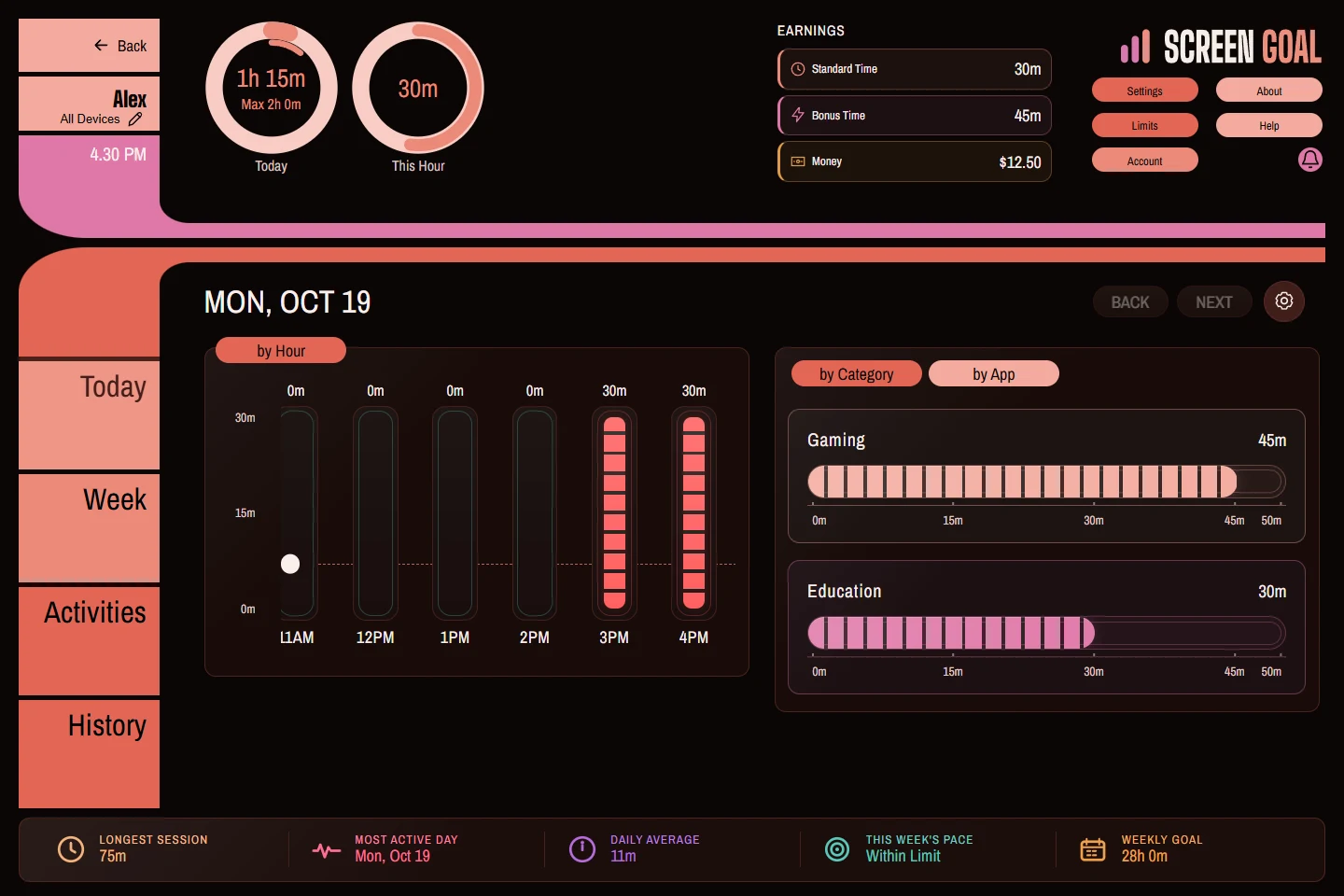

Real application captures with fictional family data. Child warning screens show the Windows experience. Select a capture to view it full size.
THE EVERYDAY ADMIN, HANDLED
Set daily limits or completely block by main category, or sub-category or a specific app. Web content is analysed and categorised automatically.
Create as many different periods with different sets of category and app limits as you need.
Configure how warnings show up, and whether you want a hard stop or gradual transition when time is up.
Add Bonus Time to the total limit, or for a single category or app.
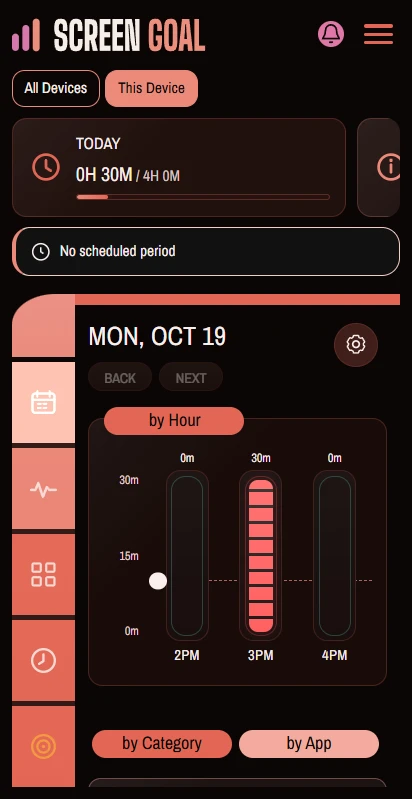
01.1 / VISIBILITYTime recorded by Screen Goal, shown by hour and category.
01.2 / SCOPEDaily limits for a device or across a child’s devices.
01.3 / FLEXIBILITYRegular limits and today-only bonus grants are separate.
AN AGREEMENT THEY CAN ACT ON
Homework first. Then 15 extra minutes.
An Activity they can submit, a reward you can review.
FROM RESPONSIBILITY TO REWARD
Create Must do or Optional Activities in Plan for work and study, personal interests or helping others. Today brings the day’s activities together, with orange, green and blue borders, type icons and clear reward amounts. Repeat routines daily or weekly and choose how completion is reviewed.
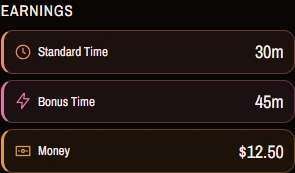
Standard time can release part of a regular allowance. Bonus time adds an earned extra. Money tracks pocket money and requests for spending or cash. Reward history shows what was earned and used.
Redeemed time changes the daily allowance. Schedules, app and category rules, explicit blocks and a manual lock can still apply.
Need a one-off exception today? Parent Bonus Time grants remain available separately. Explore the full Activities workflow ↗
SMALL ACTIONS THEY CAN PRACTISE
Something to do. Time to choose.
A signal to start wrapping up.
A clear Activity gives your child a specific next step. They submit their work; you review it and confirm the reward.
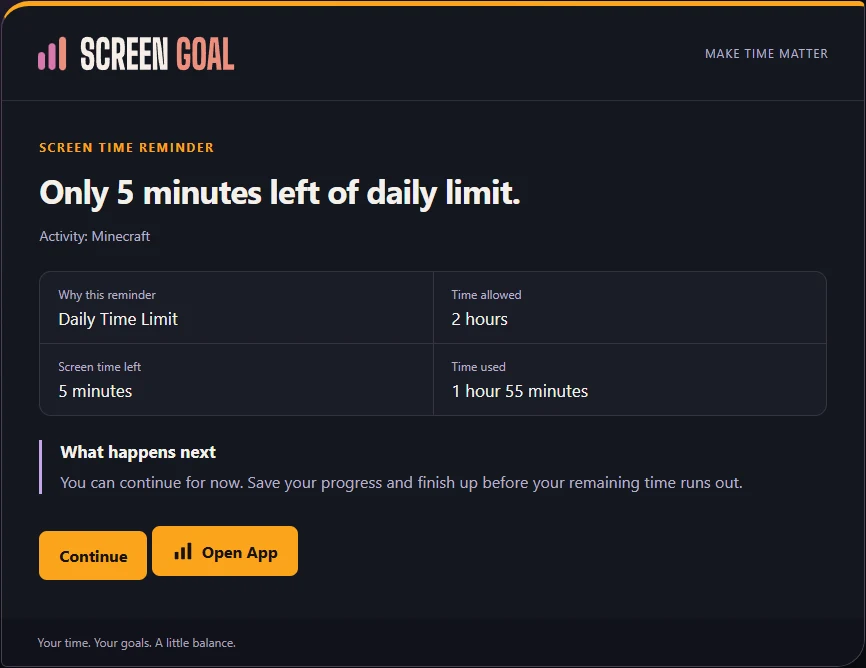
The Windows reminder shows time allowed, time used and time remaining. Five minutes left is a cue to find a stopping point.
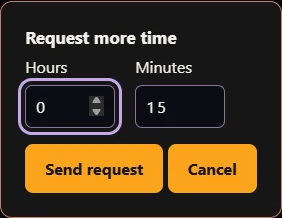
From the Windows pause screen, your child can request more time. A request goes to the parent for review; sending it does not unlock the device.
Screen Goal provides cues and choices to practise. Lasting habits still take repetition and family support.
A HEADS-UP. THEN A CLEAR BOUNDARY.
“Only 5 minutes left” gives them a chance to save, pause or find a stopping point before their allowance ends.
The warning interval is configurable. This Windows example uses a five-minute warning, followed by the enabled delay and blocking settings. Time is compressed for the demonstration.
WINDOWS · ANDROID · SCREEN PARENT
CONNECTED CONTROLSChoose All Devices to see the child’s combined activity, or open a single device for its lock state and supported battery or location information. Explore device controls ↗
ANDROID, AT THE RIGHT SIZEA compact navigation and Earnings layout makes room on short and very small Android screens. Managed installations can also suspend explicitly blocked apps. See Android requirements ↗
EVERY REWARD EXPLAINEDUnderstand approvals, carry-forward, recurring Activities, pocket-money requests and what happens when a device is offline. Read the detailed features guide ↗
A PLACE FOR THE DETAILS
Our features guide walks through setup, every kind of limit, Activities, photo review, reward calculations and the questions that come up in everyday use.
Open the features guide ↗PUT YOUR FAMILY’S RULES INTO PRACTICE
Daily limits, Activities, earned rewards and a heads-up before the limit. One Family Plan, with unlimited devices.
Get started Already have an account? Sign in