
Start with the controls your family needs.
Microsoft Family Safety provides screen-time controls for Windows and Android. Its device-limit instructions and app and game limit instructions are useful starting points. Check the scope of each setting: a schedule, a device allowance and an app limit are different rules.
Screen Goal brings a shared child allowance together with individual device controls, parent-reviewed Activities and earned rewards. It is worth considering when you want those parts of the family routine in the same place. You can also manage the agreement manually while you work out which rules your family actually needs.
The Screen Parent dashboard runs in a supported browser, including on a parent's phone. Child monitoring is currently available for Windows and Android. Using the parent dashboard on an iPhone does not provide child monitoring for that iPhone or an iPad.
Set up the shared allowance in Screen Goal.
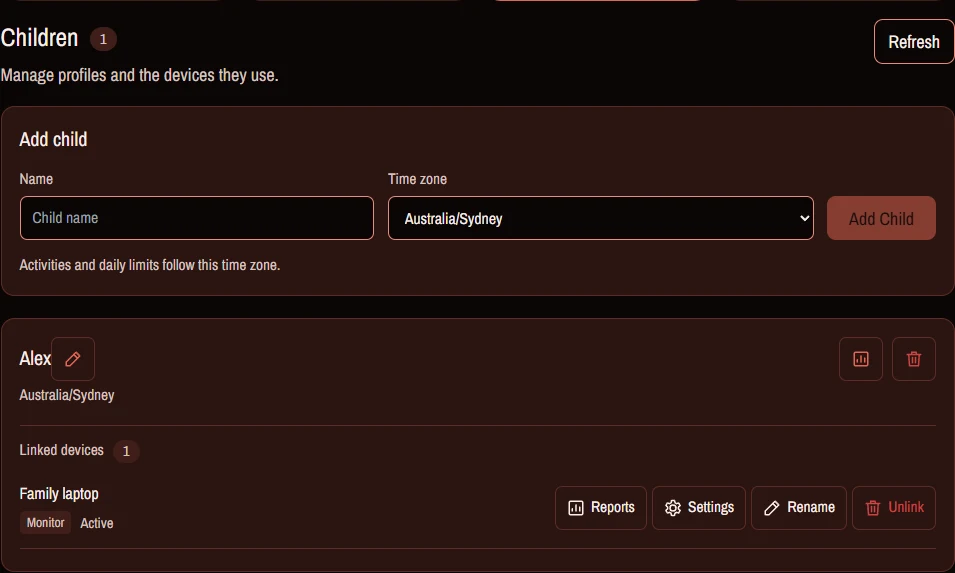
- Create the child's profile. In Screen Parent, open Account and check the child's time zone. Daily allowances and midnight boundaries use that profile's time zone.
- Link both devices to that child. Install Windows Desktop and Agent on the PC, and the Android app on the phone or tablet. Complete each device's setup and permissions. Use the setup and downloads guide.
- Choose the shared scope. Select the child and All Devices, then open Limits → Daily Maximum. Confirm you are editing the child's shared allowance rather than an individual device cap.
- Set the ordinary allowance. Choose the default daily amount and any weekday overrides. A smaller school-day allowance and a different weekend allowance can be part of the regular policy.
- Review other rules. Check scheduled periods, category limits, app blocks and any individual device caps. Having daily time left does not override every other rule.
- Check both devices receive the change. Allow synchronisation, use a counted app briefly on one device and compare the resulting usage and remaining allowance. Repeat on the other device.
The daily limits reference explains the settings in more detail. Start with one ordinary allowance before adding rewards and exceptions.
Add earned time once the ordinary rule makes sense.
An Activity can release Standard time held from the daily allowance or award extra Bonus time. These are separate balances. Parent approval makes a time reward available; the child must then redeem it to use the time.
For a simple first routine, choose one clearly described activity, one reward and a predictable review time. For example, an optional helping-out activity could earn a small Bonus-time reward. Keep the criteria clear enough that both of you know what finished means.
Redeeming a reward does not remove a restricted period, explicit app block or manual lock. A one-off parent Bonus Time grant is also different from an Activity reward. Read the earned-time guide before combining several reward types.
Check the situations your family actually encounters.
| Situation | What to check |
|---|---|
| The child switches devices | Both devices belong to the same child, the allowance is shared, and recent usage has synchronised. |
| A device stops while time remains | Look for a device cap, category or app limit, restricted period or manual lock. |
| The allowance looks lower than the saved setting | Check whether Standard-time Activities are holding part of the allowance until completion and redemption. |
| A device is offline | Saved rules may continue, but cloud usage and parent reports can lag. Do not treat offline use as an instantly coordinated shared timer. |
| The child uses both devices together | Test the reported totals and the boundary with your own devices. A shared allowance relies on synchronised usage, not a single local stopwatch. |
New task submissions, approvals and redemptions need an online, server-confirmed response. Read sync and offline behaviour before relying on the setup away from a connection.
Android controls also depend on permissions and installation mode. Ordinary installations use permitted overlays; stronger app-launch suspension requires a compatible managed installation. See Android setup and protection.
Keep the first week simple.
Start with one child, the two linked devices and one shared rule. Check it together at a convenient time, then review what was confusing after a few days. Add a reward activity once the ordinary allowance is clear.
If the PC is mainly used for games, continue with our Windows gaming-PC guide. For a clearer family agreement, use the routines and expectations guide.
ONE FAMILY PLAN
Every device.
One family plan.
Daily limits, Activities, rewards and parent controls, together.
Unlimited devices
$29 AUD/year
Foundation Subscribers
New subscriptions: $69 AUD/year from 1 January 2027. Continuing Foundation subscribers keep $29 AUD/year.
Start your 30-day trialNo card required for the trial, and no automatic charge when it ends. If you activate a paid subscription, the displayed annual price is charged immediately and renews automatically every 12 months until cancelled. Cancel before your next renewal in Parent Dashboard → Account → Subscription → Manage subscription. Subscription Terms & Conditions · Privacy Policy.
For adult parents and guardians. Already using Screen Goal? Parent sign in