
Write down four decisions before installing anything.
- When can gaming happen? Pick the periods that fit around school, meals and the rest of the day.
- How much time is available? Decide whether the allowance is for the PC, gaming apps or the child's use across several devices.
- What happens near the limit? Agree on a warning and what the child should do: save, leave a queue or avoid starting another match.
- How do exceptions work? Decide whether a parent can grant extra time, or whether a clearly defined activity can earn it.
Keep the first agreement short enough to explain without opening a settings page. You can adjust it after seeing how it works during an ordinary week.
Use the right control for each job.
| Job | A useful starting point | Check before relying on it |
|---|---|---|
| Windows screen-time and app limits | Microsoft Family Safety | The child's account and connected device setup, plus the scope of each time rule. |
| Steam game access, playtime and purchase requests | Steam Families | The child role and parental-control settings. Steam's controls do not replace checks for games and apps outside Steam. |
| Time rules alongside Activities and earned rewards | Screen Goal | Windows Desktop and Agent installation, selected child/device scope and the rule's behaviour in your games. |
| Who the child can chat with or what they can buy inside a game | The game's own account and safety settings | Available controls differ by game. A time limit does not decide who can contact the child or what content is suitable. |
Microsoft documents its screen-time limits and app and game limits. Steam Families includes game-access restrictions, playtime limits and requests for additional time; see Steam's introduction to Families.
If the built-in controls meet your agreement, start there. Consider Screen Goal when you want to connect time rules with family responsibilities and rewards, or manage a linked Windows and Android setup together.
Set up the Windows account and the monitoring components.
Keep the parent's administrator access separate from the child's everyday use. The Windows account privileges and protected-account setup affect how a control can be changed or removed.
Screen Goal for Windows has two components. Desktop provides the interface; Agent handles background monitoring and enforcement. Install both from the official downloads, or use a combined installer when available. Follow the release notes and protected-account prompts.
- Open Desktop and link the device to the correct child.
- Set the parent's PIN and check that the child profile has the intended time zone.
- Use a game briefly, then check that its activity is reported and the parent view shows recent device contact.
- Change one modest rule, allow it to synchronise and confirm the device receives it.
Closing the Desktop window is different from stopping the background Agent. Before relying on the setup, check monitoring under the Windows account the child will actually use.
Separate the daily allowance from the gaming rule.
A daily maximum, Gaming category limit and individual app limit answer different questions. For a PC also used for schoolwork, inspect the reported apps and their classifications before treating all recorded time as gaming.
You can give a game its own rule and choose different rules for ordinary and restricted periods. Review any exceptions carefully: Unlimited means there is no separate per-app minute cap, while daily, category and schedule rules may still apply. Always allowed is a broader exemption.
A browser can contain both schoolwork and entertainment, and an app's category is not proof of what the child is doing. Start with the specific game and school apps your family uses, then review the results together.
If an Android phone or tablet is also part of the agreement, see how a shared Windows/Android allowance works. Two independent device allowances do not automatically create one shared total.
Make the warning useful.
An advance warning is a cue to save or decide whether another round fits. Set it far enough ahead for the games your child plays. Screen Goal can also use configured timed alerts and blocking after the warning sequence.
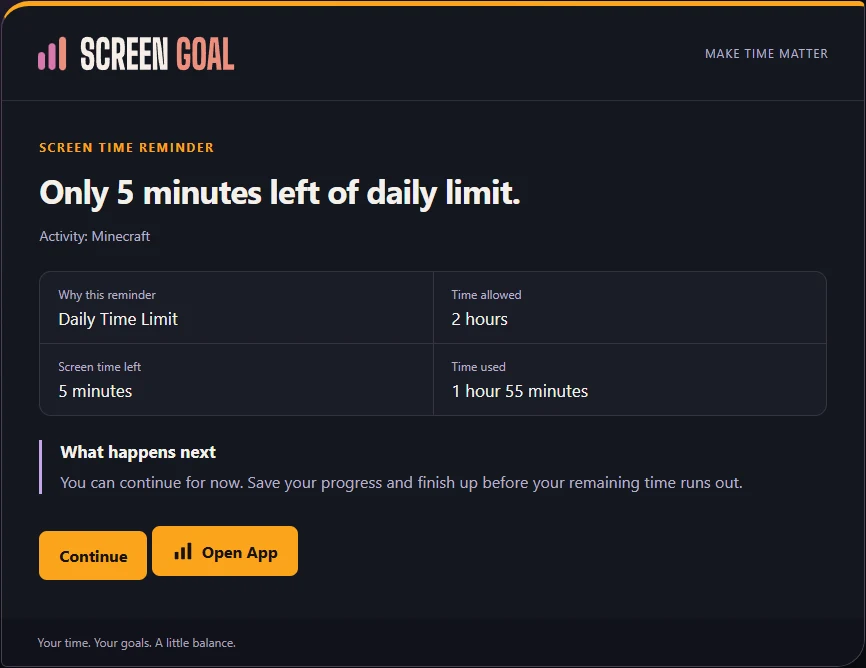
Screen Goal does not recognise the end of every match or guarantee a save point. Full-screen software and the device setup can affect how controls appear. Test with no important unsaved work and at a point where stopping is safe for the game.
For an exception today, a parent can use Limits → Bonus Time. A grant can target an app, a category or any activity. Check whether scheduled periods should still apply; extra time does not clear a manual lock.
Connect extra play to a clear activity.
Choose one activity with an observable finish, such as a practice session or a helping-out job, and attach a Bonus-time reward. The child submits the activity, a parent reviews it where approval is required, and approved time becomes available to redeem.
Keep earning, approval and redemption distinct when explaining the routine. Earning a reward does not remove an explicit app block or a restricted period. The reward guide explains how Standard and Bonus time differ.
Screen Goal helps carry out the agreement. It does not guarantee less conflict or a particular behavioural outcome.
Run a short check before the first unattended session.
- Use the child's normal Windows account and confirm recent activity reaches the parent view.
- Check that the intended game and rule are selected.
- Test the warning and limit in the display mode the child uses.
- Confirm that needed school apps behave as intended, including during restricted periods.
- Check the effect of a parent-approved time extension.
- Restart the PC and check monitoring resumes.
- If offline play is common, test it and read the offline limitations. Reports and remote changes can lag while disconnected.
After a few ordinary sessions, ask what was confusing and adjust one setting at a time. The gaming overview and Windows reference provide more detail when you need it.
ONE FAMILY PLAN
Every device.
One family plan.
Daily limits, Activities, rewards and parent controls, together.
Unlimited devices
$29 AUD/year
Foundation Subscribers
New subscriptions: $69 AUD/year from 1 January 2027. Continuing Foundation subscribers keep $29 AUD/year.
Start your 30-day trialNo card required for the trial, and no automatic charge when it ends. If you activate a paid subscription, the displayed annual price is charged immediately and renews automatically every 12 months until cancelled. Cancel before your next renewal in Parent Dashboard → Account → Subscription → Manage subscription. Subscription Terms & Conditions · Privacy Policy.
For adult parents and guardians. Already using Screen Goal? Parent sign in